
By Clint Sanchez · Published · Updated · 6 min read
Quick answer
PHP 7.4 reached its official end of life on November 28, 2022, so WordPress sites still running it get no security fixes and run slower. To upgrade to PHP 8.0, check the current version under Tools, Site Health, Info, back up the site and database, test every theme and plugin on a staging copy or a local environment, deactivate anything incompatible, review the front end, then switch the live site through your host's control panel.
Key takeaways
- PHP powers nearly 80% of the web, according to Altamira, including most WordPress sites.
- PHP.net lists November 28, 2022 as the official end-of-life date for PHP 7.4; after that date security issues are no longer investigated or fixed.
- As of October 2022, W3Techs reported PHP 7.4 was still the most widely used version across live websites.
- WordPress shows the server's PHP version under Tools, Site Health, Info, if your host does not display it.
- Test on a host staging environment or a local copy before touching the live site, and back up the site and database first.
- If the site crashes on PHP 8.0, deactivate all plugins and themes and reactivate them one at a time to find the incompatible one.
- A theme or plugin that no longer receives updates is a sign it is time to replace it or rebuild part of the site.

Want this handled instead of DIY?
A 15-minute call, no script, no pressure. You leave with a plan either way.
PHP, it’s a necessary evil. It powers nearly 80% of the web, including this very site. And while it has its share of problems–like any software–it’s become pretty darn good over the years.
But there’s one big problem with PHP: it’s stuck in the past.
The latest version of PHP–version 7.6–was released nearly August 28, 2019. And while it did bring some significant improvements over previous versions, it’s starting to show its age.
After Nov 28, 2022, PHP 7.4 will no longer be supported. This is the official end-of-life (EOL) date listed on PHP.net and represented by the red dashed line on the PHP Group’s life cycle chart below.
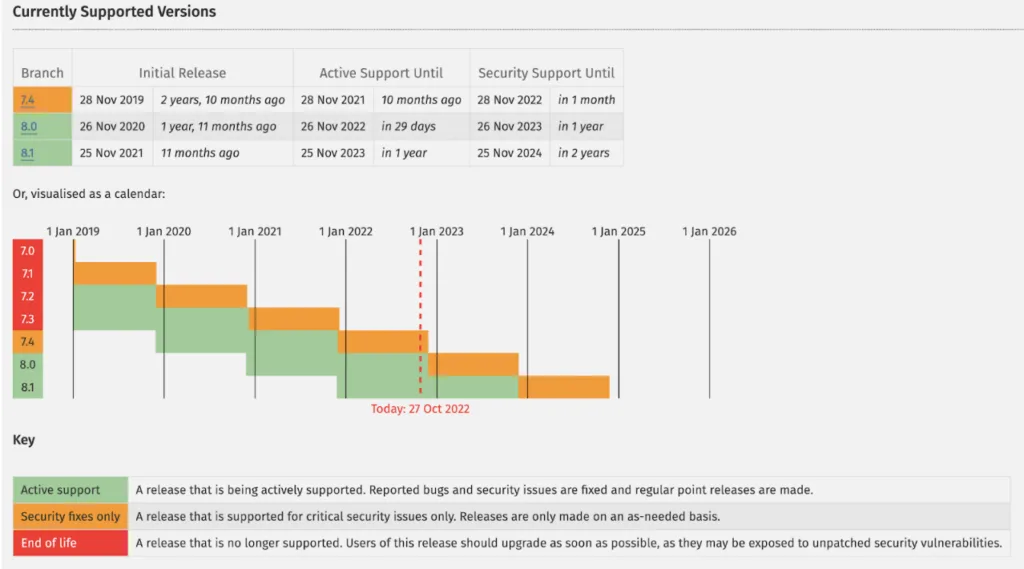
Source: PHP.net
Want this handled for you? We build and market websites for Louisiana businesses, and we will tell you honestly if you do not need us.
The team responsible for addressing security issues that may arise for the PHP 7.4 version will no longer investigate or handle them with a fix. Older versions of PHP lead to a slower experience for website visitors and leave them vulnerable to security risks. Agencies that have yet to switch to PHP 8.0 should strongly consider doing so before November 28th.
Although PHP 8.0 was released in late 2020, many WordPress websites still run on unsupported versions of PHP. As of October 2022, W3Techs reports that the most widely used version of PHP across live websites is 7.4.
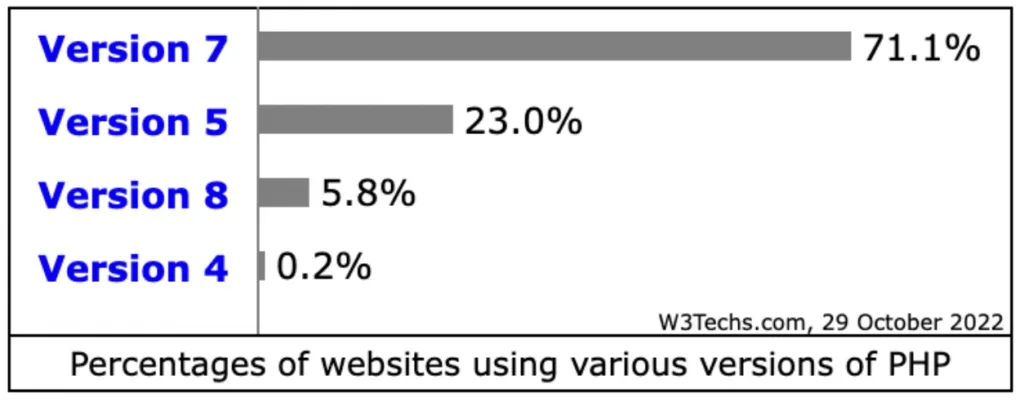
Source: W3Techs
Companies such as WP Engine / Flywheel have stated that their development teams will provide security support past the end-of-life milestone of November 28th. There is no currently set expiration date for this Unlimited Continued Security Support plan.
Even with support extensions from third-party sources, the support for PHP 7.4 will eventually end. If your agency has one or multiple websites running themes or plugins that their original authors are no longer supporting, it may be time to rethink them.
What specific actions should your agency take to stay updated on the latest PHP versions, from 7.4 up to 8.0?
The upcoming sections will give a broad overview of what needs to be done regarding the end-of-life (EOL) for PHP 7.4 and upgrading to PHP 8.0.
Take Inventory of Client Websites
The first thing an agency should do is see what PHP version their websites are running. Some hosts, like WP Engine, will have the information under their administrative controls section, while contacting support may be necessary for others.
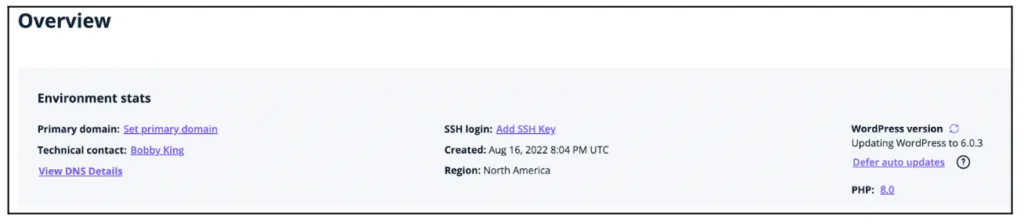
If you don’t have easy access to the PHP version listing, never fear. The WordPress Site Health Tool can be found under the WP Admin dashboard (just log in with an administrator-level user account). Then go to Tools > Site Health > Info and check the server section.
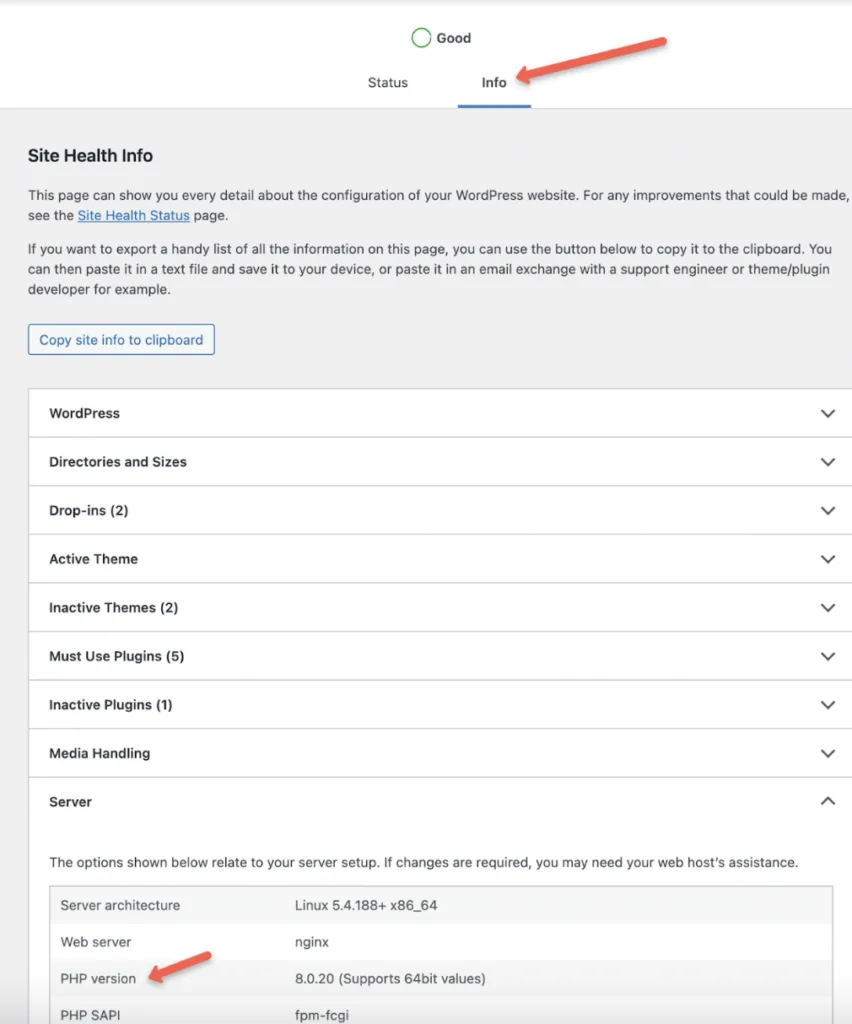
If you find that your PHP versions are outdated, it is recommended to update them to at least version 8.0. Some hosting providers will switch automatically, some require manual updates via their control panel, and others may need you to contact support and request the switch. In any case, testing is necessary before making the actual switch.
Test Compatibility of Themes and Plugins
Although most WordPress websites can update to the latest version of PHP, some may not transition as smoothly. To avoid any issues, check that all website themes, plugins, and scripts are compatible with the new version. If even one element does not work well with PHP 7+, it could cause problems like decreased site performance or broken functionality.
Below are two recommendations for setting up an environment to test the PHP changes. The first involves setting up a staging environment through a host, and the second consists in setting up a local server environment on a computer.
You have two ways that you can set up an environment to test your PHP changes:
Staging environment via host provider
If your website is hosted with WP Engine, Flywheel, Kinsta, or a similar provider, you can set up a staging environment on their servers. This will create an identical copy of your live site that you can use to test changes before making them on the actual website.
Local development environment
Although a local development environment generally requires more set-up steps, it is worth the effort as you can test PHP changes without jeopardizing your website. For example, Local by WP Engine lets you replicate the hosting environment on your computer so that you can confirm compatibility with your plugins, themes, etc.
With either of these options, perform the following:
- Save a backup copy of your WordPress website and database.
- Make sure that WordPress core and all plugins are up to date
- Change the environment from your current PHP version to 8.0 or above
- If the site crashes immediately, deactivate all plugins and themes, then activate each one by one until you identify which specific incompatible plugin or theme is causing the issue.
- If any of your installed plugins or themes are incompatible with PHP 8.0, update them if possible or reach out to the developers for more information.
- Once the site is up and running, test the front end.
Perform a thorough review after updating the PHP
Before replicating the changes on our live website, let’s thoroughly test it. Once it’s updated, have someone review the front end for any issues with the page layout or code display.
Pay attention to error codes too. Then, check that all site components are functional, such as contact forms and call-to-action buttons. If you’re running an online store, make a test purchase too.
Take screenshots of any issues discovered and note the differences between the updated test site version and the current live one. By doing this, developers can more easily identify solutions to make sure the latest PHP version is compatible with your website.
Go live with PHP 8.0
After vetting your PHP code on a local or staging site, it is time to roll it out to your live website. As always, make sure you take a backup beforehand!
Depending on the hosting company, PHP versions can be manually changed by logging into the control panel or contacting customer support.
Like with the staging/local testing website, make sure you make a change that is visible and functional on the front end of the website.
PHP powers nearly 80% of the web, according to Altamira, including most WordPress sites.
Getting help with PHP 7.4 to PHP 8.0 updates
Although PHP updates offer agencies many benefits, such as improved website stability and performance, some lack the time needed to manage these updates correctly. As a result, complications often arise.
While hosting providers can address changes in the PHP version, they might not be as effective at addressing compatibility issues with WordPress components.
Plugin and theme developers should always be aware of changes in PHP code so their software will remain compatible. If you’re using a plugin or theme that isn’t currently up-to-date, contact the developer to see if an update is planned.
It may be time for a change if the theme or plugin you’re using is no longer receiving regular updates. This could mean finding a replacement or rebuilding some (or all) of your outdated website.
Here at BlakSheep Creative, we specialize in WordPress design/development, maintenance, and hosting services. If you need assistance or have questions about your current WordPress setup, don’t hesitate to contact our team. We would be more than happy to help investigate and recommend a course of action.
Conclusion
PHP is a necessary evil. But it’s essential to keep up with the latest version to make sure website stability and prevent potential security vulnerabilities.
When updating your site’s PHP version, always take a backup first. We recommend a staging environment to test the new code before making changes to your live website. Following these steps will help avoid any major issues and downtime.
Looking for a real conversation about your business: no sales pitch, no commitment? Book a free 15-minute Discovery Call.
About the author

Founder & Lead Developer · Denham Springs, LA
Clint has built and marketed websites for 26 years, since founding BlakSheep Creative in 2000. He is also a 29-year firefighter and a 23-year member of IAFF Local 557, which is where the bias toward plain answers over sales copy comes from.
- Veteran-owned
- Firefighter-owned
- IAFF Local 557
Common Questions About PHP 8 and WordPress
Short answers to the questions that come up most on this topic.
How do I check which PHP version my WordPress site is running?
What happens if I stay on PHP 7.4?
Will PHP 8 break my WordPress themes or plugins?
What is the safest way to test a PHP upgrade?
How do I switch the live site to PHP 8?
What if a plugin I depend on is not compatible with PHP 8?

Your next step, without the guesswork
No surprises, clear next steps, and a fixed price before anything starts.